[Tool Tip] WorkBuddy Auto-Claim Points: No Simulated Clicks — Let the Client Sign Itself in Three Steps
 11/24 2026
 409
WorkBuddy hands out 100 points every day. To make it easier to collect those daily eggs, I used macOS accessibility interfaces plus code injection to build a way to claim them automatically each day.
Scope first: macOS only — Windows won't work, since the launcher, commands, and scheduled tasks are all Mac mechanisms.
Effect
Now every morning at 8:30, the script connects to the client once, asks, "Has today's check-in been done?" and if not, signs in:
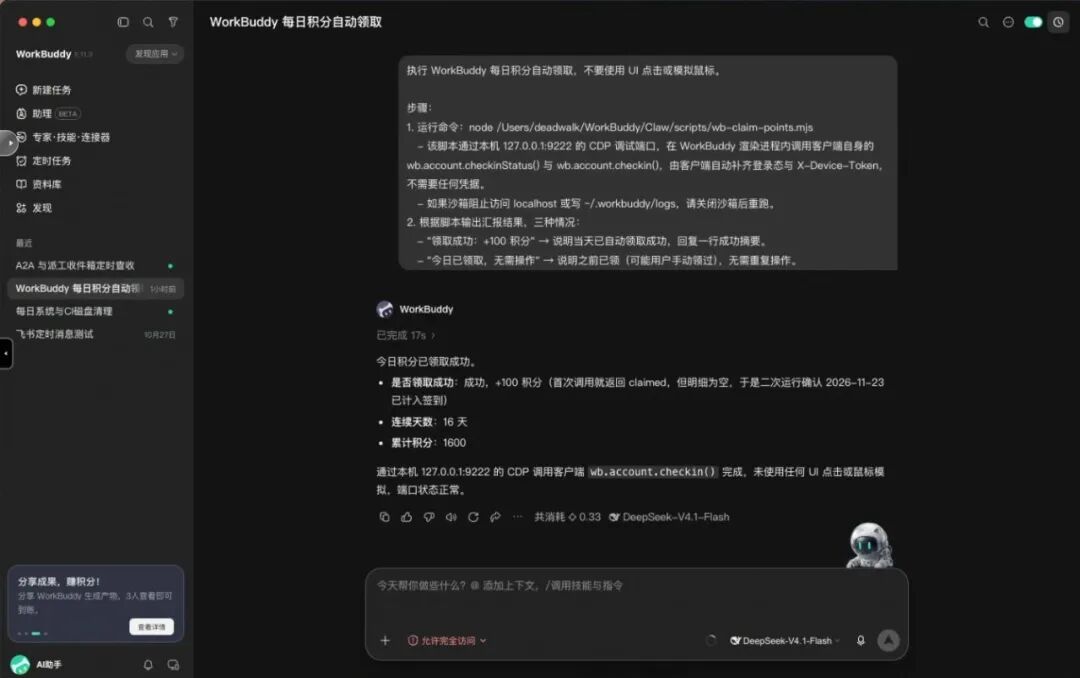
The whole approach touches no cookies, no passwords, and simulates no mouse actions.
Step 1: Make the client expose a debugging port
WorkBuddy is an Electron app, and the code leaves a switch in place: at startup it reads the environment variable WORKBUDDY_REMOTE_DEBUGGING_PORT, and if present, uses it to open a Chrome DevTools debugging port.
This variable is only read at the moment of startup and cannot be changed while running, so you must quit first, then relaunch with the variable:
# First fully quit the client
osascript -e 'quit app "WorkBuddy"'
sleep 2
# Relaunch with the debugging port
open --env WORKBUDDY_REMOTE_DEBUGGING_PORT=9222 -a /Applications/WorkBuddy.app
After it starts, verify the port is listening:
lsof -nP -iTCP:9222 -sTCP:LISTEN
curl -s http://127.0.0.1:9222/json/version | head -3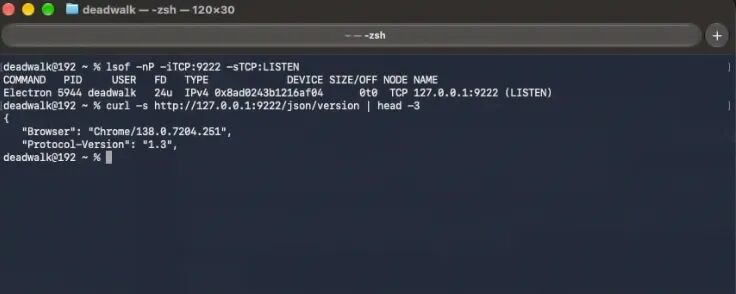
The port binds only to 127.0.0.1, so it can't be reached from the external network. The trade-off: a normally started WorkBuddy doesn't have this port — so in daily use, launch "WorkBuddy with debugging port". Typing open --env by hand every time isn't realistic, so make a double-clickable launcher app; three commands are enough:
mkdir -p ~/Applications/"WorkBuddy Debug.app"/Contents/MacOS
cat > ~/Applications/"WorkBuddy Debug.app"/Contents/MacOS/WorkBuddyDebug <<'EOF' #!/bin/sh
exec /usr/bin/open --env WORKBUDDY_REMOTE_DEBUGGING_PORT=9222 -a /Applications/WorkBuddy.app
EOF
chmod +x ~/Applications/"WorkBuddy Debug.app"/Contents/MacOS/WorkBuddyDebug
Then write an Info.plist into Contents/; four keys are enough (see the screenshot below for the complete content, just copy it): CFBundleDisplayName=WorkBuddy Debug, CFBundleExecutable=WorkBuddyDebug, CFBundleIdentifier filled with a reverse-domain name (e.g. cn.local.workbuddy.debuglauncher), LSUIElement=true (no persistent icon in the Dock).
From then on, there are just two usage rules:
In daily use, launch from "WorkBuddy Debug" (double-click, drag into the Dock, or search via Spotlight); it starts with the port. If the client is already running, clicking it only brings the old instance to the foreground and does not carry the variable — press Cmd+Q to fully quit first, then launch from the launcher. You can also add it to login items so it starts with the port at boot. Step 2: Find the check-in API in the page
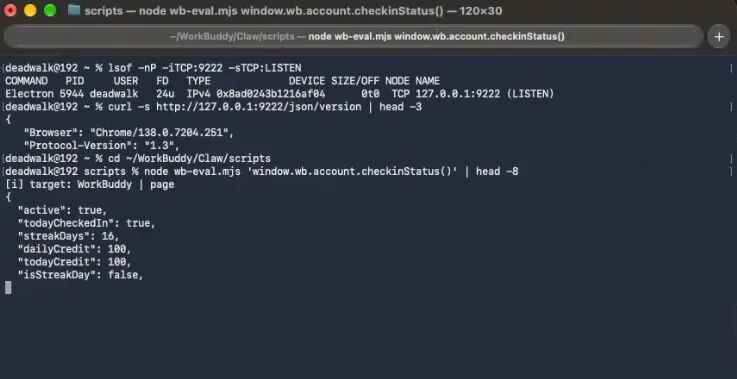
With the port available, you can execute JavaScript directly in the client's renderer process. The account module is mounted on window.wb.account, and two methods are enough:
// Check status first
await wb.account.checkinStatus()
// { todayCheckedIn: true, streakDays: 16, todayCredit: 100,
// totalCredits: 1600, themeName: "Buddy gas station ", ... }
// Call it only if not checked in yet
await wb.account.checkin()
// { credit: 100, streakDays: 17, ... }
The wb-eval.mjs in the image is a general-purpose little tool that sends any JS snippet into the renderer process for execution — the principle is exactly the same as the full script in Step 3 (both are Runtime.evaluate), except that the "JS to execute" is made a parameter.
Notes:
todayCheckedIn is an idempotent switch; read it first before deciding whether to write, which avoids duplicate requests;
checkin() is the actual claim; the server returns HTTP 400 for "already claimed today", which is a normal business rejection;
You do not need to assemble authentication yourself: the login cookie and X-Device-Token are automatically supplied by the client in the renderer process, and the script does not involve a single character of them.
Step 3: Write the script and attach it to a scheduled task
The complete script is as follows; it runs directly on Node 18 or above and requires no dependencies (both fetch and WebSocket are built in):
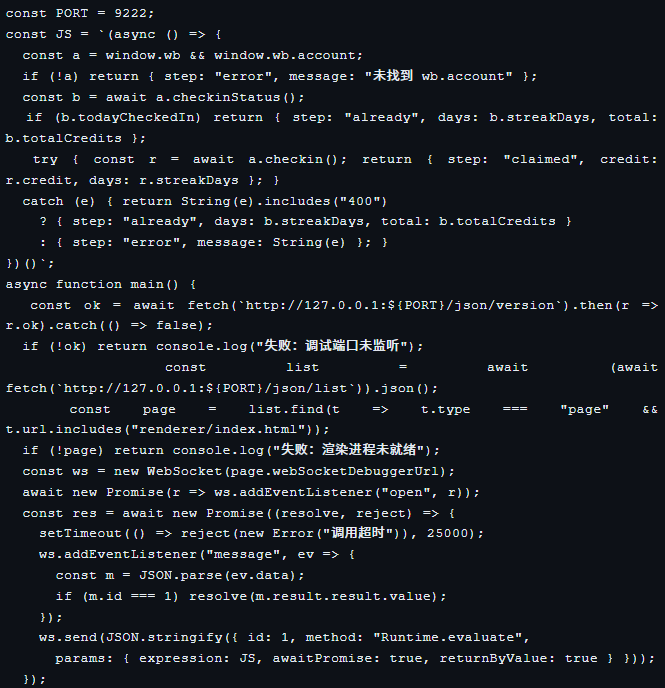
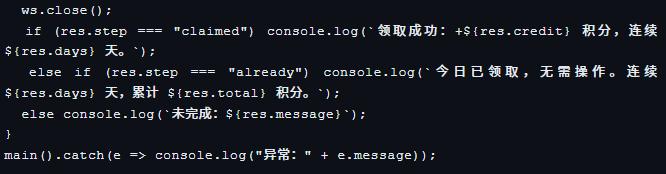
Notes:
/json/list lists debuggable pages; pick the one whose url contains renderer/index.html, which is the main interface; awaitPromise: true waits for the asynchronous result before returning; the entire check-in logic runs inside the page and directly uses window.wb; the script is only responsible for relaying and printing.
Attach it to a scheduled task; macOS's built-in crontab is enough. Save the script to a fixed path and edit the scheduled task:
crontab -e
# Add this line (replace the path with yours), runs every day at 08:30:
30 8 * * * /usr/local/bin/node /Users/yourusername/wb-claim-points.mjs
The script is naturally idempotent: if already claimed, it simply skips, and running it an extra time has no side effects. I have it set for 08:30 every day.
FAQ
Error "Failed: debugging port not listening": the client was not started with the variable. Press Cmd+Q to fully quit, then launch from the launcher with --env. The port cannot be opened additionally while running.
Error "wb.account bridge not found": the page has not finished loading, or it connected to a non-main interface (such as some popup page). Wait a few seconds and retry, or check the renderer/index.html selection condition.
checkin() returns 400: this is not an error; the server is saying "already checked in today". The script has already translated it into a normal "already claimed".
Security boundary: the debugging port listens only on the local loopback address, so external connections cannot reach it; but in theory any process on the local machine can connect and read the current session. If you mind, starting the client normally is equivalent to turning it off, at the cost of losing automatic claiming for that day.
Summary
1. Quit the client, start it with open --env WORKBUDDY_REMOTE_DEBUGGING_PORT=9222, and the port is available;
2. Use curl 127.0.0.1:9222/json/list to confirm the page target;
3. In the page, use checkinStatus() to check status and checkin() to claim; authentication is supplied by the client itself;
4. Use Runtime.evaluate to send JS in and read back the result;
5. Attach it to a fixed time every day; check first, then write, naturally idempotent.
Compared with simulated clicks, this path does not depend on coordinates, is not affected by interface carousels, and does not touch any credentials — it calls the client's own methods, and as the client changes, it changes along with it.
One final boundary: this script only claims the officially given points once a day for yourself; do not increase the frequency and do not attach multiple accounts — that is not automation, that is exploiting the system, and you bear the account risk yourself.
-
Your Car Could Earn Money on Ride-Hailing While You're at Work — Will Musk's Bold 7-Year-Old Promise Come True?
-
![]()
Jensen Huang's Departure Sparks AI Selloff, His Return Revives Sentiment—Yet Hidden Concerns Linger Beneath the Computing Power Frenzy
-
![]()
Lynk & Co Sells 18,032 Units Domestically in October, Lynk 20 Alone Accounts for 28%
-
![]()
Nissan Group's China Retail Sales Hit 18,500 in October, with Dongfeng Nissan Accounting for the Lion's Share
-
![]()
Insta360 Q3 Financial Report: Revenue Surges to 3.9 Billion Yuan, Net Profit Plummets 93% to Just 17.43 Million Yuan
-
![]()
[Tool Tip] WorkBuddy Auto-Claim Points: No Simulated Clicks — Let the Client Sign Itself in Three Steps
-
![]()
Apple Builds AI Agents, OpenAI Makes Phones
-
![]()
Gross Margin of 70%, Yet Still Short on Cash? The Second Half of AI Infrastructure: From Competing on Scale to Competing on Delivery