Full WiFi Bars but Videos Won't Load? Here's What's Really Going On
 11/06 2026
 457
Have you ever run into any of these situations?
The WiFi icon in the top-right corner of your phone shows full bars, yet the video just keeps buffering. In games, your ping looks fine—then suddenly everything freezes, and a few seconds later it recovers. Your computer is connected to WiFi, but a webpage stalls halfway through loading, and the progress bar just sits there.
Your first instinct is probably to blame the broadband. You call the ISP, and customer service tells you to restart the optical modem. After the restart, everything works fine for a couple of days—then the same problem comes right back.
The culprit is most likely not your broadband, but how the WiFi in your home is set up and working together.
01
You may have been connected
to the wrong band all along
Most dual-band routers ship with band steering enabled by default. Under a single WiFi name, 2.4GHz and 5GHz are merged, and each device picks a band on its own.
The problem is that many devices—especially older phones, smart home gadgets, and budget laptops—stubbornly cling to 2.4GHz.
2.4GHz has good wall penetration, but its speed ceiling is low. Bluetooth earbuds, microwaves, and your neighbors' WiFi all crowd into this band, creating extremely high interference.
5GHz is much faster, but its wall penetration is weak. After two walls, the signal drops off significantly.
So you end up connected to a full-strength 2.4GHz signal—and the experience is: great signal, slow internet.
To fix this, log in to your router's admin panel, disable band steering, and give the two bands separate names—for example, MyHomeWiFi-5G and MyHomeWiFi-2.4G.
For devices that need speed—phones, computers, TVs—manually connect them to 5G. For long-distance, low-bandwidth devices like smart locks, cameras, and thermostats, leave them on 2.4G.
02
Where you place your router
matters more than how much it costs
A router's signal radiates outward like a sphere.
If you stuff it into a weak-current box, a TV cabinet, a corner, or put it on the floor, you're essentially locking the signal in a cage from the start.
Measured data shows that moving the router from a corner to an open position at the center of the house, 1 to 1.5 meters above the ground, can increase average signal strength in edge rooms by 12 to 18dBm, reduce latency fluctuation by about 30%, and increase effective coverage area by 32%. After passing through two non-load-bearing walls, it can still maintain a stable reception level above -65dBm.
If it deviates more than 1.5 meters from the center, 5GHz is likely to drop below -70dBm after passing through two walls, and the video loading failure rate will increase significantly.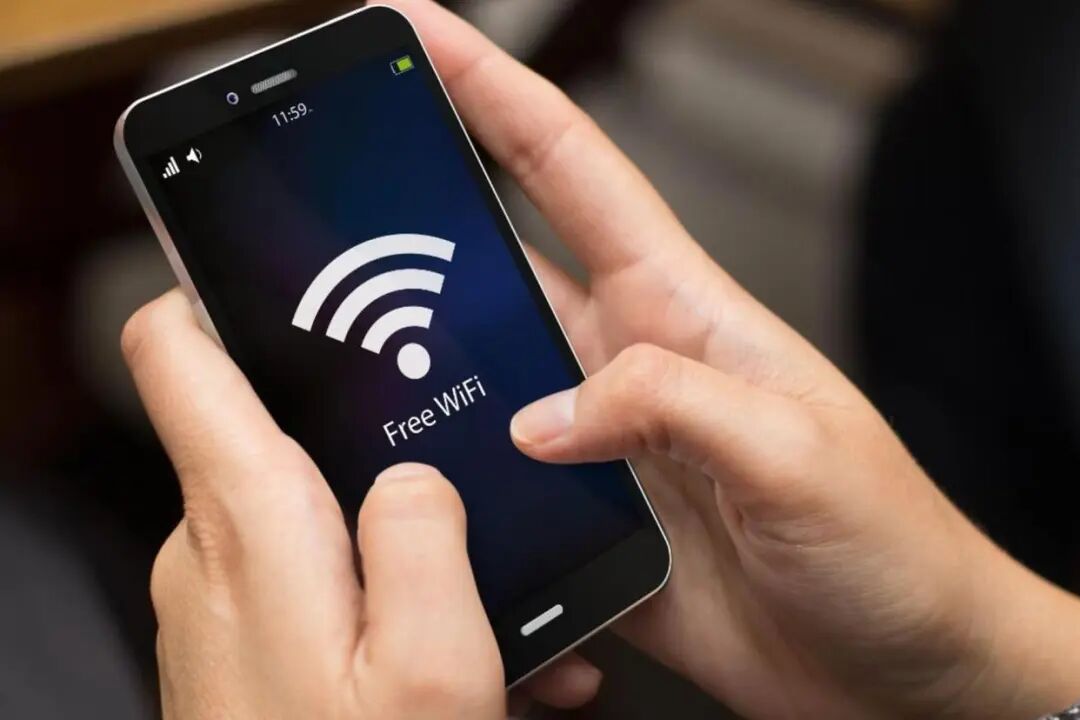
Image source: Internet
The impact of wall material also exceeds what many people imagine.
Ordinary brick walls attenuate about 10 to 15dB, gypsum board partitions only 3 to 5dB, but load-bearing concrete walls or walls containing metal studs can cause more than 25dB attenuation per layer.
Metal cabinets, fish tanks, and large green plants are also unfriendly. Water bodies can absorb more than 30% of 2.4GHz signals.
Antenna placement also matters.
For a router with three antennas, keep the middle one vertical and tilt the left and right ones forward and backward by 45 degrees respectively, forming a three-dimensional coverage cone. This is much more reasonable than having all antennas stand straight up or all lie flat.
03
Channel congestion
is an invisible traffic jam you can't see
In China, 2.4GHz only has three completely non-overlapping channels: 1, 6, and 11. But most routers automatically select channels by default, and as a result, neighbors throughout the building cluster on channel 6.
With more than a dozen households on one floor and one router per household, channel conflicts are almost inevitable.
You don't need to understand spectrum analysis. Install a WiFi analysis app on your phone, scan to see which channel is least occupied around you, and manually switch to it in the router's admin panel.
For 2.4GHz, prioritize the cleanest one among 1, 6, and 11. For 5GHz, there are more channels and less interference. If the router supports it, prioritize enabling 149, 153, and 157, which are compliant in China and have relatively low interference.
04
Gigabit broadband not reaching full speed?
Sometimes it's just a network cable or a port
Luo Yonghao once complained that he had gigabit broadband but couldn't actually reach 100Mbps.
Later investigation showed that in most cases where gigabit drops to 100Mbps, 70% to 80% are because the network cable is plugged into the 100Mbps port on the optical modem or router, rather than the fastest gigabit port.
The back of optical modems and routers usually has multiple network ports, labeled gigabit or 100Mbps.
The cable connecting the router and the optical modem must be plugged into the gigabit port. The network cable itself also matters. Only CAT5E or CAT6 can fully handle gigabit. Old CAT5 cables or cables with oxidized RJ45 connectors will have their speed directly locked at 100Mbps.
Check the WAN port connection rate in the router's admin panel. If it shows 100Mbps instead of 1000Mbps, you've found the problem.
05
When there are many devices at home
bandwidth gets eaten up by contention
Phones, tablets, TVs, computers, smart speakers, cameras—more than a dozen devices online at the same time. If the router does no scheduling, one or two high-traffic devices—say, a computer downloading a game or a TV streaming 4K video—will hog all the bandwidth, and other devices will naturally lag.
The router's QoS (Quality of Service) function is designed for exactly this.
After enabling it, you can set high priority for latency-sensitive devices such as video conferences and online games, and set low priority or directly limit speed for download devices.
ASUS's adaptive QoE can limit bandwidth for up to 32 connected devices at the same time.
Routers from brands such as Xiaomi also offer smart speed limiting. After manually setting high priority for gaming or conference devices, latency fluctuations caused by bandwidth contention can be effectively reduced.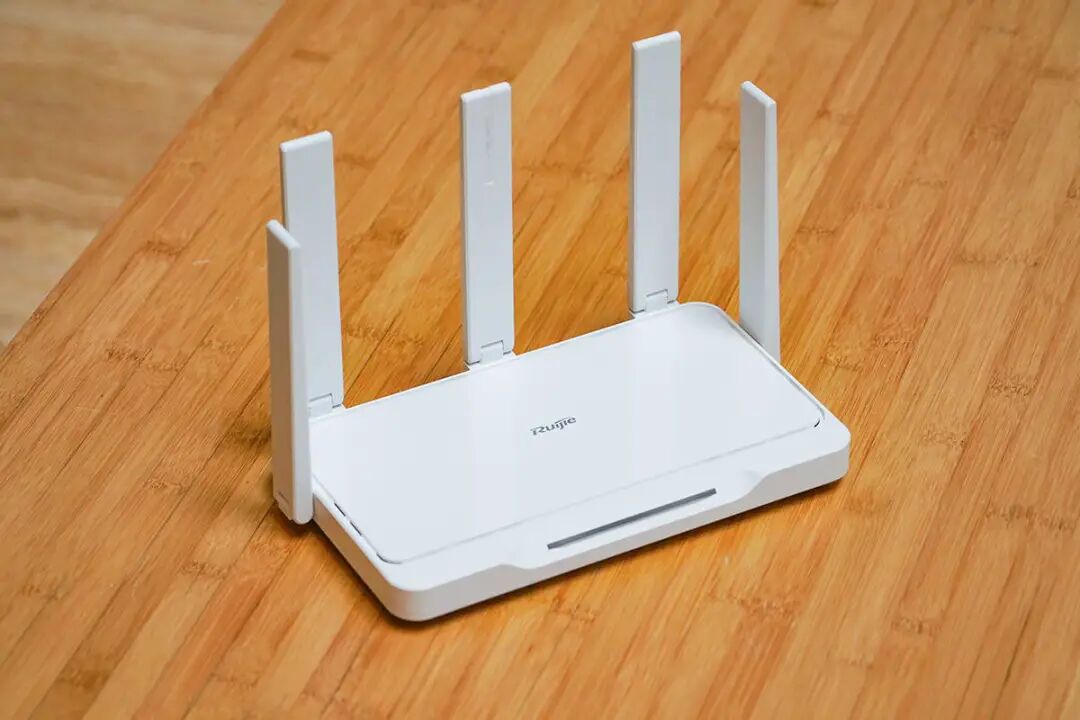
Image source: Internet
Not every router puts this function in an obvious place, but by digging through the advanced settings or traffic control in the admin panel, you can usually find it.
There's also an almost zero-cost trick: restart your router once a week.
Routers are like phones. After running for a long time, cache accumulates and processing efficiency declines. Restarting clears these burdens.
If the router shell feels noticeably hot, blocked heat dissipation will also cause the RF chip to automatically reduce power, and internet speed will drop accordingly.#wifi signal #poor signal
-
![]()
Full WiFi Bars but Videos Won't Load? Here's What's Really Going On
-
![]()
Yang Yuanqing's Bold 30% PC Market Share Pledge: Ambitious but Far from Easy
-
![]()
U.S. Moves to "Permanently Ban" Chinese Cars — and It Reeks of Fear
-
![]()
When MONA Accounts for Half of XPeng's Sales, Is It Trying to Break Away and Go It Alone?
-
![]()
Hong Kong Stocks Bull Run: Hang Seng Tech Soars 5.55%
-
![]()
Xiao Zhan and Sun Yingsha's "First Stock of Massage Devices" Under Scrutiny: Actual Controller Ousted
-
![]()
Why Can Longgang's Cross-Border E-Commerce Keep Its Lead Steady Despite Industry-Wide Headwinds?
-
10 Years On: Chip Performance Has Grown 40-Fold and Memory 8-Fold—So Why Do Phones Still Lag?